Online PDF Editor — Edit, Sign, Convert, and Collaborate From Anywhere

PDFs were originally designed to look the same on every device, and that’s exactly why we rely on them for resumes, contracts, invoices, school assignments, and official paperwork. But anyone who has ever tried to fix a typo in a PDF or add a missing signature knows the frustration: PDFs are consistent, yes but they’re not always easy to change.
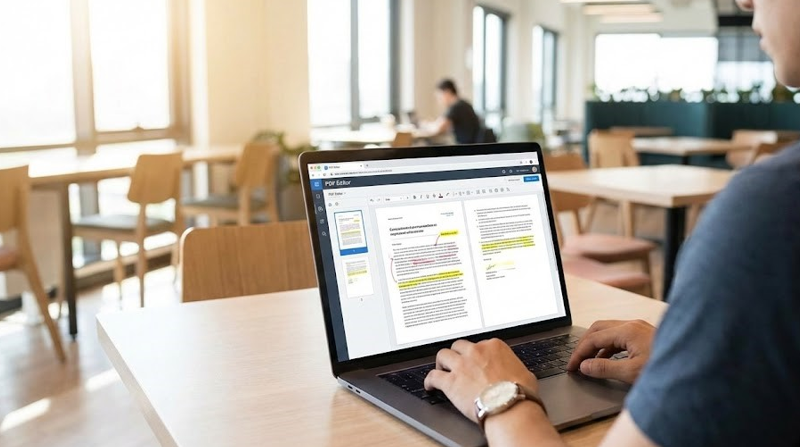
That’s where an online PDF editor earns its place in your workflow. Instead of hunting for desktop software, installing updates, and emailing attachments back and forth, you can open a browser tab and get real work done in minutes. Whether you’re a freelancer sending agreements, a student organizing lecture notes, or a small business handling purchase orders, an online PDF editor can save time, reduce errors, and keep documents moving.
Below is a practical, human-first look at what an online PDF editor does, which features matter most, and how to use one confidently without turning your day into a document-fixing marathon.
What an Online PDF Editor Actually Does (Beyond “Editing”)
When people hear “PDF editor,” they often think it only means changing words on a page. In reality, most modern online editors combine several tools into one streamlined experience:
- Edit text and images (when the PDF structure allows it)
- Add annotations like highlights, comments, and shapes
- Fill out forms and create form fields
- Sign documents with eSignatures
- Rearrange pages, delete pages, rotate pages
- Merge multiple PDFs into one file
- Split PDFs into smaller documents
- Compress PDFs to reduce file size
- Convert files (Word to PDF, PDF to Word, images to PDF, and more)
The best part is speed: many tasks that used to require multiple apps can now be completed in a single browser session.
If you want a dedicated solution for everyday editing tasks, Online PDF Editor is a natural starting point because it typically bundles the core actions people need editing, signing, converting, and organizing without forcing a complicated learning curve.
Why Online PDF Editing Is So Popular Now
The shift toward online tools isn’t just a trend, it’s driven by how people actually work today.
1) You can work from anywhere
If your documents live in email, cloud storage, or a team drive, it makes sense to edit them from the same laptop you’re already using without needing your “office computer” or a specific installed program.
2) It’s easier to collaborate
A browser-based workflow makes it simpler to share a file, ask for changes, and finalize documents quickly. Instead of “v3_final_FINAL_revised.pdf,” you can keep one clean version and coordinate updates.
3) You reduce device clutter
Many people don’t want to install heavy software just to add a signature once a week. Online editors keep your device lighter and your process simpler.
4) It works across operating systems
Windows, Mac, Chromebook, Linux an online tool can work across platforms so you don’t have to adapt your workflow every time you switch devices.
Features That Matter Most (So You Don’t Overpay or Choose Wrong)
Not every editor is created equal. Here are the features that consistently make the biggest difference for real users.
Text editing that doesn’t feel fragile
Some PDFs are “true text,” while others are scanned images. A good editor handles both:
- For text-based PDFs: the ability to adjust wording, formatting, and spacing
- For scanned PDFs: OCR (Optical Character Recognition) to “read” the page and make it searchable/editable
If you work with contracts or templates, text editing + OCR is huge.
Page organization tools you’ll use daily
People underestimate how often they need to:
- delete blank pages
- rotate sideways scans
- reorder sections
- extract a few pages for an email
A clean page management interface saves time every single week.
eSignature tools that feel professional
A proper eSign flow typically includes:
- typed, drawn, or uploaded signatures
- initials
- date fields
- optional signer tracking (depending on the platform)
For contractors, HR teams, and service businesses, signing is often the #1 reason they choose an online editor.
File conversion that preserves layout
Converting PDFs is easy; converting them well is harder. Look for:
- accurate formatting (fonts, spacing, tables)
- clean output in Word/PowerPoint
- image conversion that doesn’t blur text
Security basics you should not ignore
Even if you’re “just editing a form,” you might be handling personal data. At minimum, look for:
- HTTPS encryption
- clear file retention policy
- options to delete files
- password protection for exported PDFs (if needed)
See also: How Blockchain Technology Is Transforming Supply Chain Management
Common Use Cases (Real-World Scenarios)
Here are a few ways people use online PDF editors in everyday life:
Students and educators
- combine multiple lecture PDFs into one
- highlight and annotate readings
- submit assignments as a single organized file
- compress documents before uploading to portals
Freelancers and agencies
- send proposals and contracts
- collect signatures faster
- mark up design proofs
- keep invoices clean and consistent
Small businesses
- edit vendor PDFs
- prepare onboarding paperwork
- convert documents to editable formats
- organize receipts and statements
Legal and administrative work
- redact sensitive details (when supported)
- annotate case files
- manage multi-page forms
- standardize client documentation
A Simple Workflow: From “Messy PDF” to “Ready to Send”
If you want a reliable routine, here’s a simple process that works for most documents:
- Upload or open your PDF from your device or cloud storage
- Check the file type: text-based or scanned
- If scanned, run OCR so you can search and copy text
- Make edits (text changes, image swaps, form fields)
- Organize pages (remove blanks, reorder, rotate)
- Add signature and date fields
- Compress if the file is too large for email or portals
- Export and rename clearly
That’s it, no extra tools, no back-and-forth, no “I can’t open this file” surprises.
Choosing the Right Platform Without Getting Overwhelmed
People often ask, “Which online PDF editor is best?” The honest answer is: it depends on what you do most often.
Use this quick checklist:
- Do you need OCR for scanned pages?
- Do you sign documents weekly (or daily)?
- Do you convert PDFs to Word/Excel often?
- Do you need team collaboration features?
- Are you editing sensitive docs (health, legal, finance)?
If your needs are straightforward edit, sign, merge, compress most reputable online editors will cover it. If you handle complex forms, high-volume signing, or compliance-heavy documents, look for advanced controls and a transparent security policy.
Also, consider where the tool fits into your broader workflow. If you prefer a site that offers multiple utilities beyond PDFs (file conversion, compression, document tools), you may benefit from using tool based website options that keep everything in one place and reduce the number of tabs you juggle during a workday.
Tips to Make Your PDFs Look More Polished
Small details make a PDF look “official,” especially for client-facing files.
- Use consistent fonts when editing
- Keep alignment clean; avoid uneven spacing
- Don’t overuse highlights use them to guide attention
- If you add shapes or boxes, keep them uniform
- Always preview before exporting
- Check file size and readability on mobile
A PDF that looks neat builds trust. A messy one can create confusion especially when money, deadlines, or legal commitments are involved.
Final Thoughts: Less Document Stress, More Done
An online PDF editor is one of those tools you don’t think about until you need it—and then you wonder how you worked without it. It turns PDFs from “static and annoying” into “editable and efficient,” which is exactly what modern work demands.
Whether you’re adjusting a contract clause, preparing a school submission, sending a signed agreement, or cleaning up a multi-page scan, the right browser-based editor can save you time, reduce mistakes, and help you deliver professional documents fast.